Profile
Set your name and avatar under Account settings. Your sign-in email is shown for reference and cannot be edited.
Name & avatar
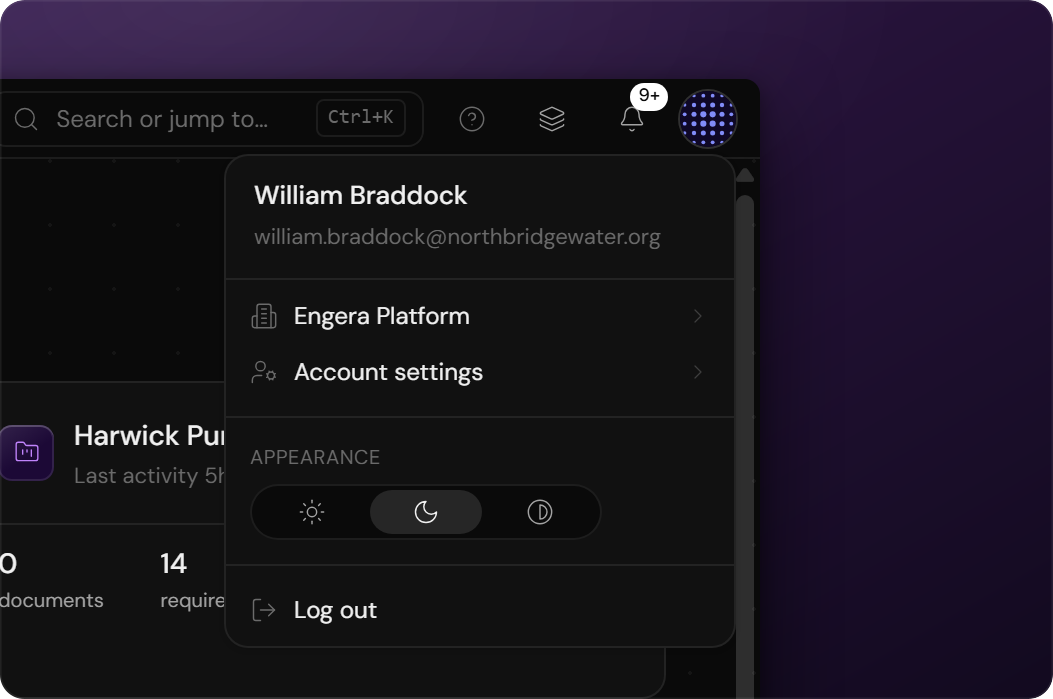
To edit your profile, open your avatar in the top-right corner and navigate to Account settings → Profile. Your profile appears in conversations, member lists and review trails.
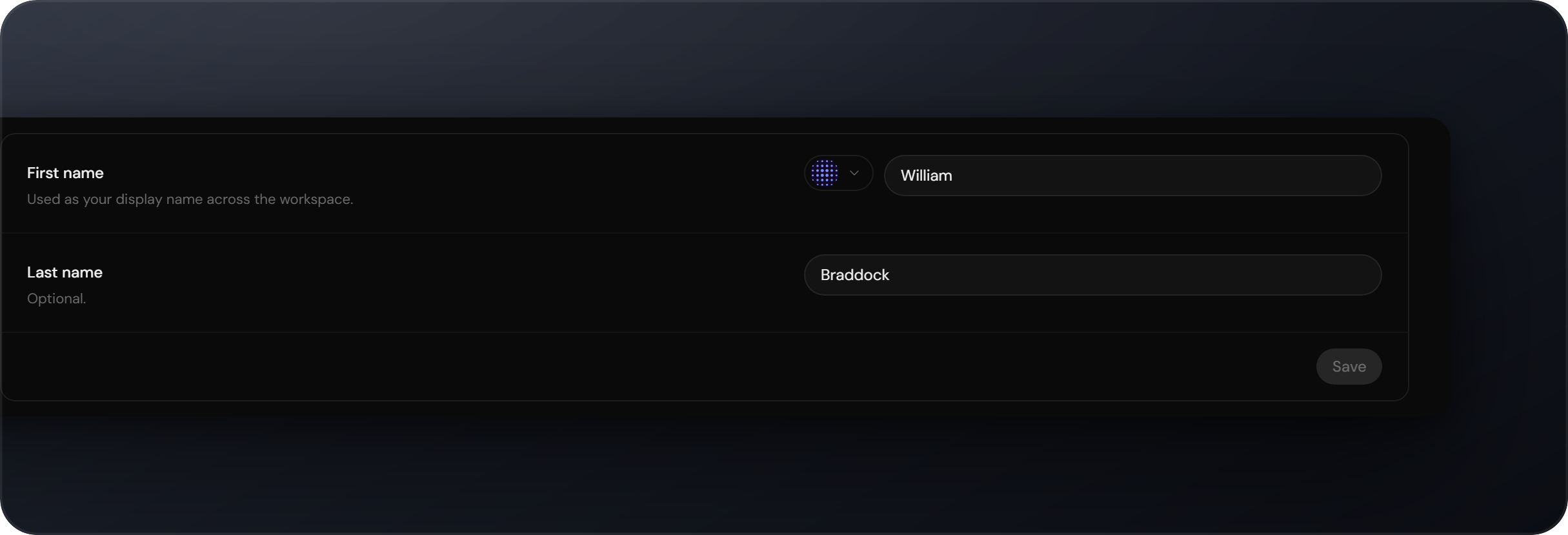
- First name is used as your display name across the workspace. Last name is optional.
- Click the avatar next to your name to choose a pattern and colour. Engera assigns every user a distinct generated avatar by default.
Changes apply after you choose Save.
Sign-in email
Your email address is shown for reference and cannot be edited. It is your sign-in identity and is used for account recovery. To change it, contact support at support@engera.com. How sign-in works is covered in Signing in.
Workspace roles and project membership are managed by your organisation's admins; see Members & access. Profile settings do not affect your access.